> ## Documentation Index
> Fetch the complete documentation index at: https://cloud.laravel.com/docs/llms.txt
> Use this file to discover all available pages before exploring further.
# Manually Configure Laravel Nightwatch on Cloud
This guide is for Laravel applications.
Follow these steps to manually configure [Laravel Nightwatch](https://nightwatch.laravel.com) in your Laravel application and run the agent as a background process in your Cloud environment. For more details, see the [Nightwatch Getting Started Guide](https://nightwatch.laravel.com/docs/getting-started/start-guide).
You can easily connect all your App compute and Worker clusters by [automatically integrating Nightwatch with your app environment](/environments#nightwatch-integration).
## Configure Nightwatch on Cloud
Install the Laravel Nightwatch package in your application locally using [Composer](https://packagist.org/packages/laravel/nightwatch):
```bash theme={null}
composer require laravel/nightwatch
```
Run `composer require laravel/nightwatch` on your local machine to update your composer.json and composer.lock files before deploying.
Add your Nightwatch environment's `NIGHTWATCH_TOKEN` to your `.env` file:
```
NIGHTWATCH_TOKEN=your-api-token
```
You will find this value in your Nightwatch dashboard when you create an application.
To ensure the Nightwatch agent is always running and sending data, configure it as a background process in your Cloud environment:
1. Go to your **App cluster** in the Cloud dashboard.
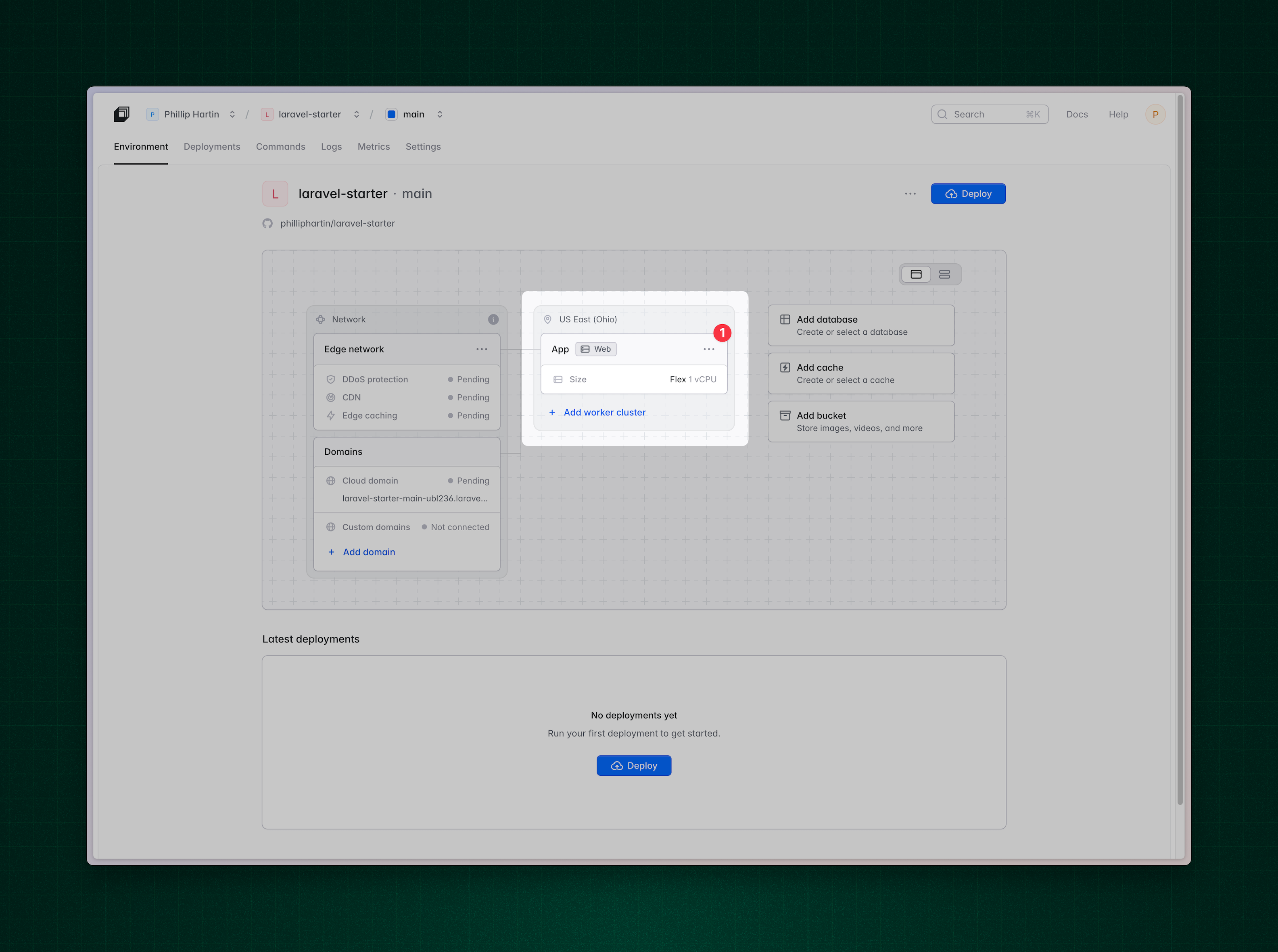 2. Click **New background process**.
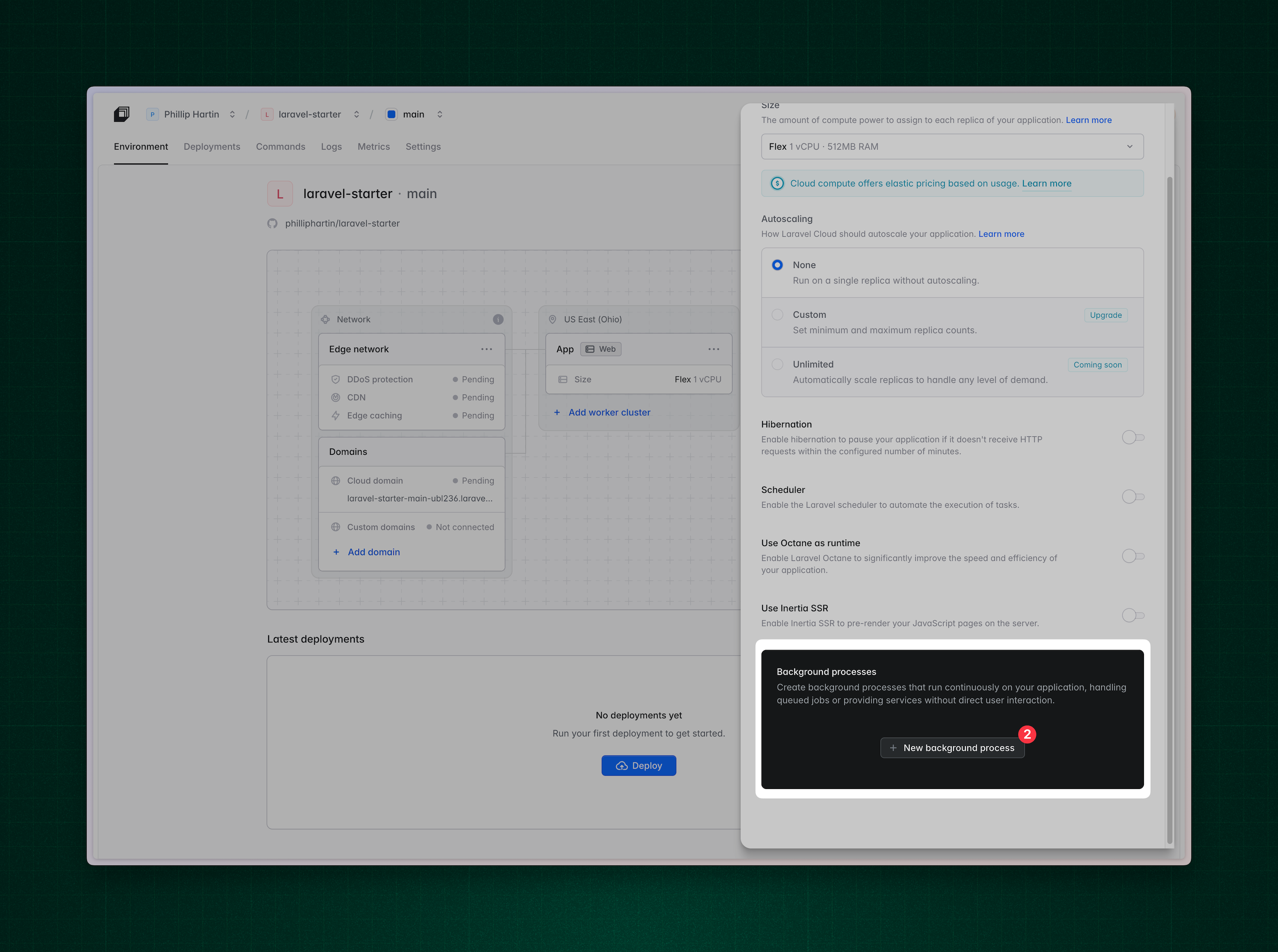 3. Choose **Custom worker**.
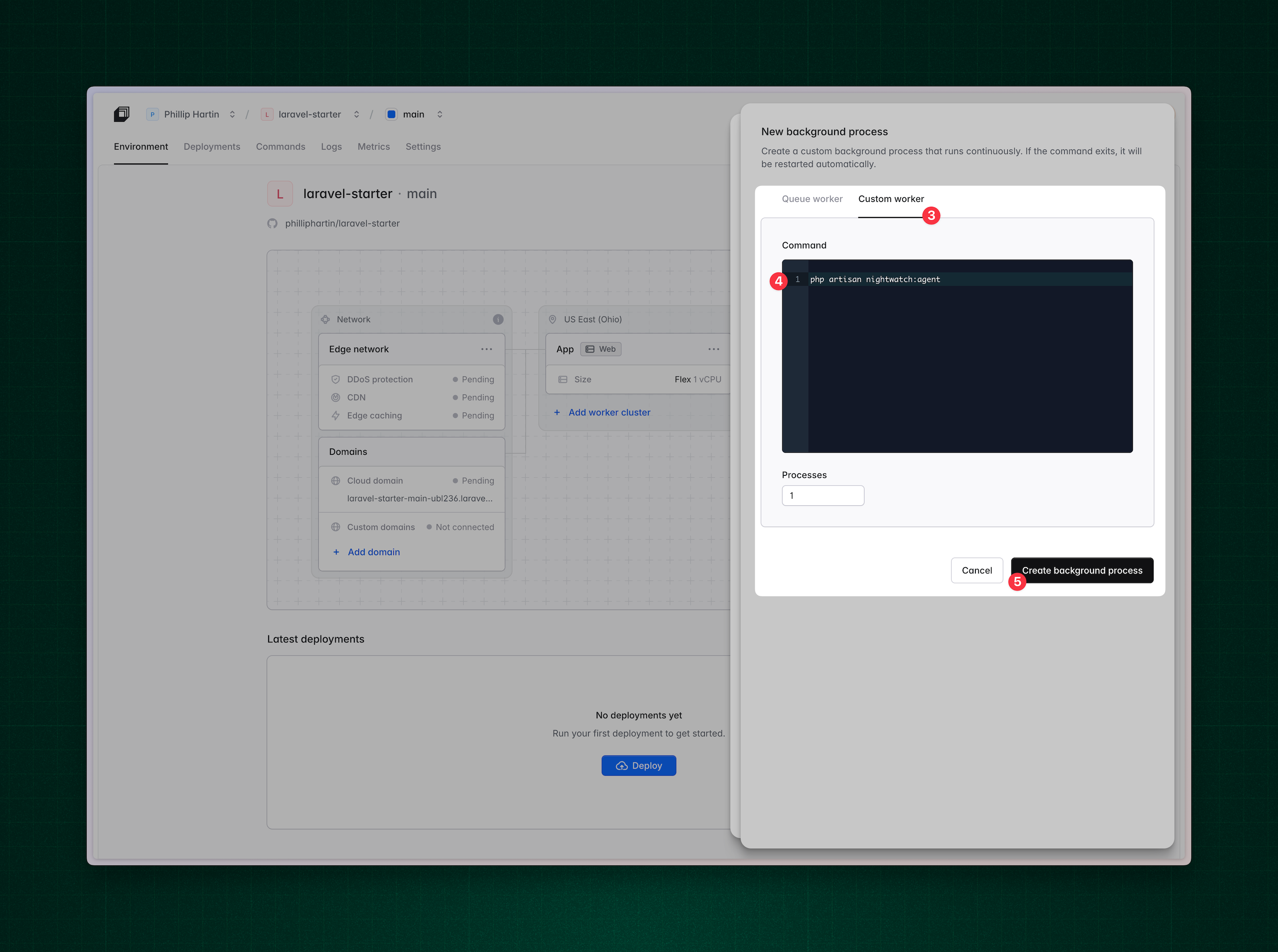 4. Enter the following command:
```bash theme={null}
php artisan nightwatch:agent
```
5. Save your changes and redeploy your application.
If you're using a dedicated [worker cluster](/compute#worker-clusters), repeat these steps for the worker cluster so it also runs the agent.
To check the health of the running agent, use the following command:
```bash theme={null}
php artisan nightwatch:status
```
The `nightwatch:status` command will exit with a non-zero status code if there is an error. This command will ensure the agent is able to accept connections and send data to Nightwatch.
## Use Cloud and Nightwatch logs
To send your logs to both [Laravel Cloud Logs](/logs) and [Nightwatch](https://nightwatch.laravel.com/docs/agent/logging), use Laravel's [log stacks](https://laravel.com/docs/12.x/logging#building-log-stacks) feature. Update your `.env` file as shown below to enable logging to both services:
```bash theme={null}
LOG_CHANNEL=stack
LOG_STACK=laravel-cloud-socket,nightwatch
```
## Frequently asked questions
**Why would I want to run Nightwatch manually?**
If you only want the Nightwatch agent to run on specific instances, you can manually set up the background process for each one.
**Can I log to both Nightwatch and Cloud Logs?**
Yes, you can use [Laravel Cloud Logs](/logs) simultaneously with [Nightwatch Logging](https://nightwatch.laravel.com/docs/agent/logging) by [setting a log stack in your .env in your Cloud environment settings](#use-cloud-and-nightwatch-logs).
**Do you need a background process running for each worker cluster?**
Yes, you should configure a background process for each worker cluster that needs to run the Nightwatch agent.
**Can you run the command from the Commands dashboard of Laravel Cloud?**
No, the Nightwatch agent must run as a background process to continuously collect and send data. Running it from the Commands dashboard will not keep the agent running.
4. Enter the following command:
```bash theme={null}
php artisan nightwatch:agent
```
5. Save your changes and redeploy your application.
If you're using a dedicated [worker cluster](/compute#worker-clusters), repeat these steps for the worker cluster so it also runs the agent.
To check the health of the running agent, use the following command:
```bash theme={null}
php artisan nightwatch:status
```
The `nightwatch:status` command will exit with a non-zero status code if there is an error. This command will ensure the agent is able to accept connections and send data to Nightwatch.
## Use Cloud and Nightwatch logs
To send your logs to both [Laravel Cloud Logs](/logs) and [Nightwatch](https://nightwatch.laravel.com/docs/agent/logging), use Laravel's [log stacks](https://laravel.com/docs/12.x/logging#building-log-stacks) feature. Update your `.env` file as shown below to enable logging to both services:
```bash theme={null}
LOG_CHANNEL=stack
LOG_STACK=laravel-cloud-socket,nightwatch
```
## Frequently asked questions
**Why would I want to run Nightwatch manually?**
If you only want the Nightwatch agent to run on specific instances, you can manually set up the background process for each one.
**Can I log to both Nightwatch and Cloud Logs?**
Yes, you can use [Laravel Cloud Logs](/logs) simultaneously with [Nightwatch Logging](https://nightwatch.laravel.com/docs/agent/logging) by [setting a log stack in your .env in your Cloud environment settings](#use-cloud-and-nightwatch-logs).
**Do you need a background process running for each worker cluster?**
Yes, you should configure a background process for each worker cluster that needs to run the Nightwatch agent.
**Can you run the command from the Commands dashboard of Laravel Cloud?**
No, the Nightwatch agent must run as a background process to continuously collect and send data. Running it from the Commands dashboard will not keep the agent running.