

Powered by Neon
Introduction
Laravel Serverless Postgres provides a fully managed, autoscaling Postgres database for your application. Serverless Postgres database clusters autoscale their compute resources and storage to match demand from your application. Laravel Serverless Postgres supports a wide range of PostgreSQL extensions, including pgvector for AI and vector similarity search. To learn more about storing and searching vector embeddings with pgvector, see Neon’s pgvector documentation.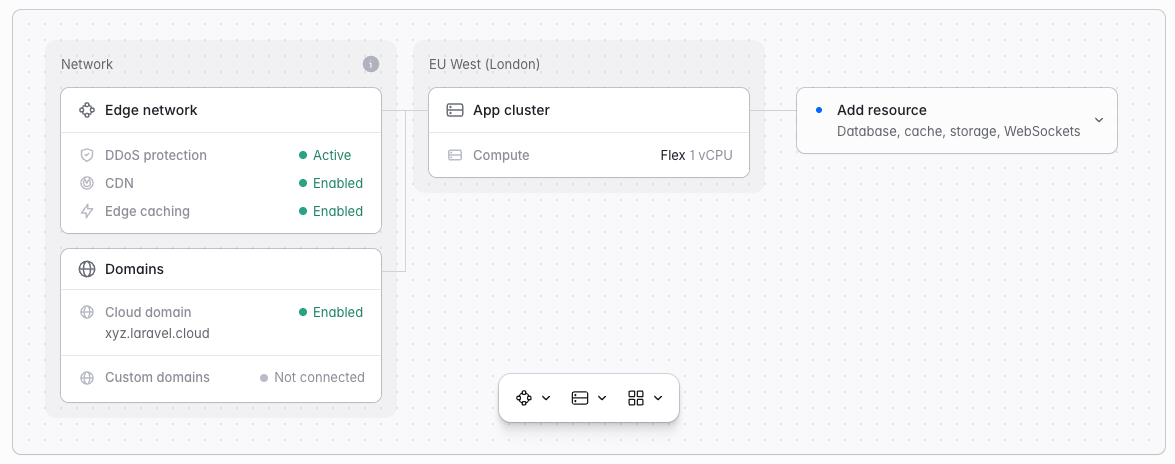
Creating Serverless Postgres databases
To create and attach a Serverless Postgres database to an environment:- Navigate to your environment’s infrastructure canvas dashboard.
- Click “Add database”.
- Select an existing database cluster or create a new one.
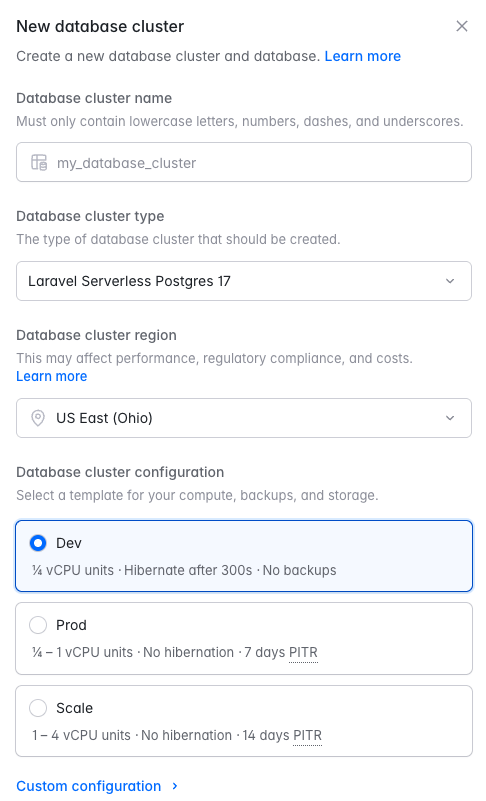
- To create a new cluster: Select the “Laravel Serverless Postgres” type at the Postgres version you want, then configure:
- Cluster name: A unique name for your database cluster
- Region: Must match your compute cluster’s region
- Configuration: Choose a preset, or customize the compute unit range the cluster autoscales between, when it scales to zero, and how many days of point-in-time recovery backups to retain
- To create a new cluster: Select the “Laravel Serverless Postgres” type at the Postgres version you want, then configure:
- Select an existing database within the cluster or create a new one.
- Database name: The name of the database within the cluster
You can also create Serverless Postgres databases from your organization’s Resources page, but you will need to attach them to an environment separately.
Database clusters vs. databases
When you create a new database cluster, Laravel Cloud asks for the name of the cluster and the name of the initial “database” to create within it. Each database cluster may contain up to 500 databases. In web development, these databases are sometimes called “schemas”. If your application needs more than 500 databases, create an additional database cluster and distribute your databases across clusters. Environments attach to a database, not to a cluster. When you attach one, you first choose the database cluster. Then you select the database within it that you want to make available through theDB_DATABASE environment variable.
Editing and resizing database clusters
To edit your database clusters and adjust their compute and storage settings, navigate to Organization > Resources > Databases and click the … icon for the database cluster you would like to edit or resize. Then, click Edit settings. Changing the compute unit range restarts your cluster’s compute and briefly drops existing connections. Autoscaling within the configured range does not restart the compute.Monitoring database cluster metrics
To view your database cluster’s metrics, navigate to Organization > Resources > Databases, click the database cluster card, and review the Metrics section. Use the time range selector to adjust the period shown.Deleting database clusters
To delete a database cluster, navigate to Organization > Resources > Databases and click the … icon for the database cluster you would like to delete. Then, click Delete and confirm your action.Compute units
When you create a Laravel Serverless Postgres database cluster, you may configure the range of “compute units” your cluster scales between based on demand. Compute units correspond to the following vCPU and RAM configurations:
The maximum compute units available to your cluster depend on your plan. On the Growth plan, clusters may scale up to 4 CU by default. If you need more compute units, contact support to request a higher limit.
Connection pooler
Laravel Serverless Postgres offers connection pooling through pgbouncer, which supports up to 10,000 concurrent connections to your cluster. To connect to the pgbouncer endpoint of your database cluster, append-pooler to the first segment of the cluster’s host name. For example, if your database cluster’s host name is ep-frosty-shadow-a57j6ubb.us-east-2.pg.laravel.cloud, the corresponding pgbouncer endpoint is ep-frosty-shadow-a57j6ubb-pooler.us-east-2.pg.laravel.cloud.
Then, add the new host name as the DB_HOST environment variable in your environment’s General Settings:
Scale-to-zero
You may configure Laravel Serverless Postgres database clusters to scale to zero automatically after they receive no queries for a given number of seconds. While a Serverless Postgres cluster sleeps, you are not billed for its compute resources. If the cluster receives a query while it is sleeping, it wakes up automatically within a few hundred milliseconds.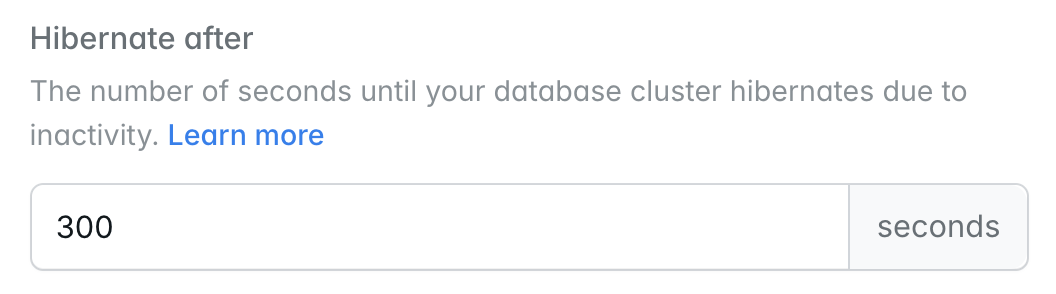
Autoscaling compute
Serverless compute can autoscale up and down based on your database cluster’s utilization. Set a minimum and maximum range, and pay only for the compute resources you need.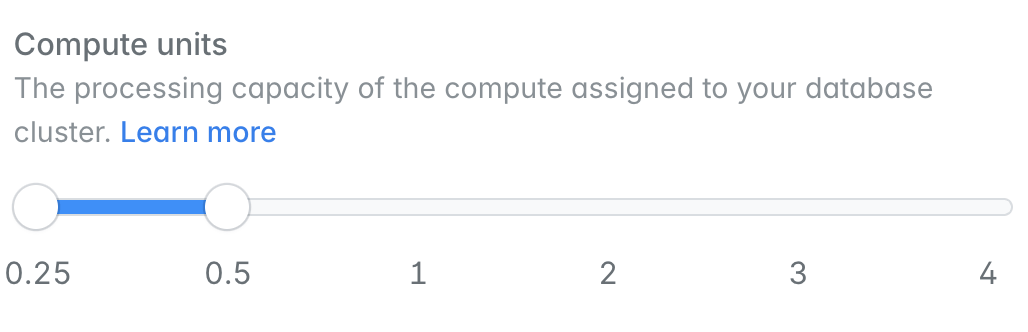
Connecting to database clusters
From your application
When you attach a database to an environment, Laravel Cloud automatically injects database connection environment variables, includingDB_HOST, DB_USERNAME, DB_PASSWORD, and DB_DATABASE. You may view these variables in your environment’s General Settings.
From your local machine
To connect to your database from your local machine using a database management client like TablePlus, navigate to Organization > Resources > Databases, click your database cluster, and click View credentials at the top of the page. To view credentials for a specific database, use its … > View credentials menu in the Databases section.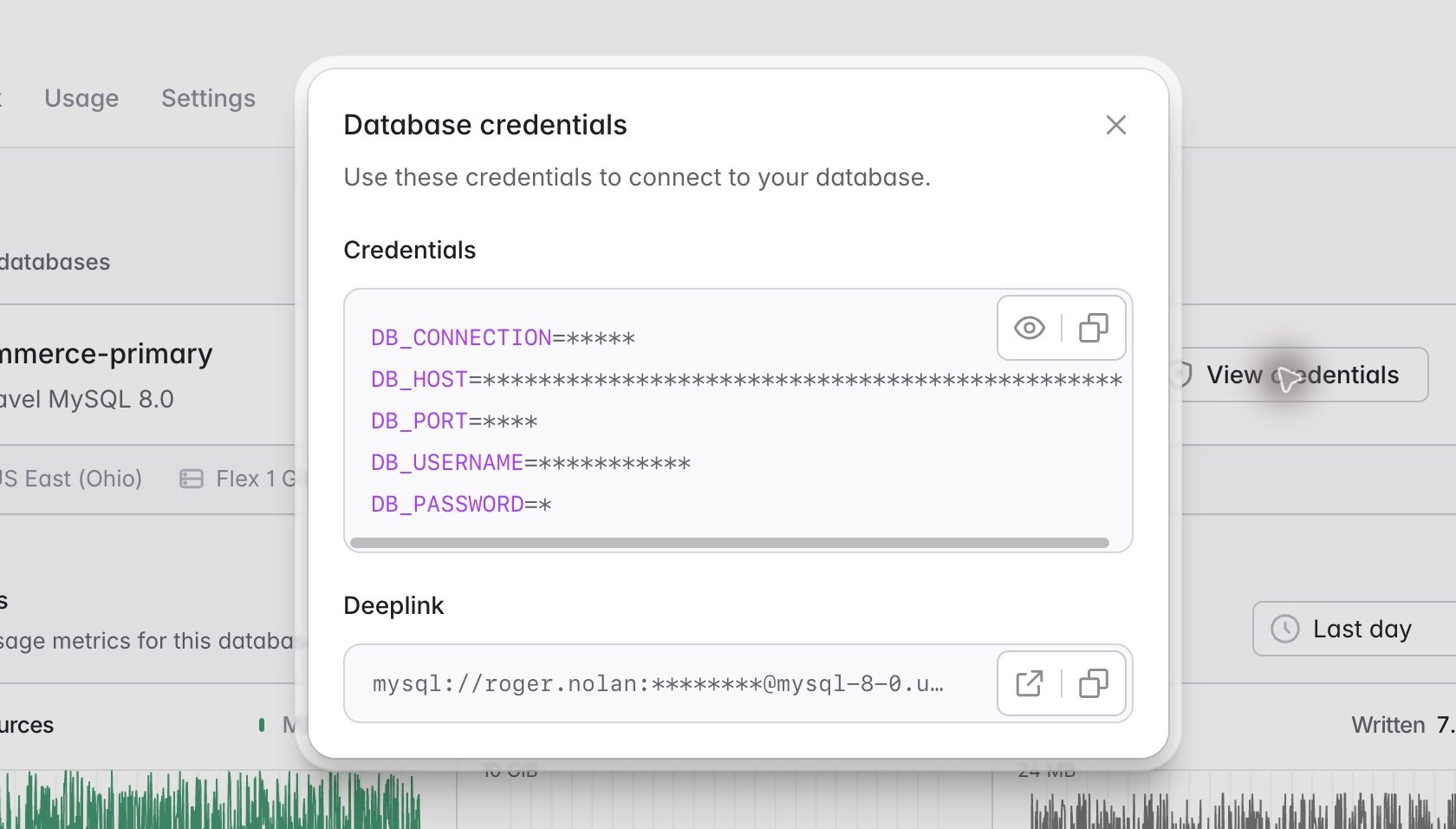
Postgres SSL connections
Neon, which powers Laravel Serverless Postgres, uses the public ISRG Root X1 certificate issued by Let’s Encrypt. So you can create an SSL connection to your Postgres cluster using the appropriate CA certificate for your operating system. If you are using macOS, this certificate should already be at/etc/ssl/cert.pem.